Apple Music (and many other programs on the Mac) can be controlled with AppleScript, allowing for a lot of automation opportunities. In this post, we will look at how you can start and stop the Music app playing, including fading out the music.
The first step is to set up a playlist in Music, we will assume for the rest of this post that it is named “Pre-service music”. Once this is created, open Script Editor, usually in the “Other” folder in Launchpad.
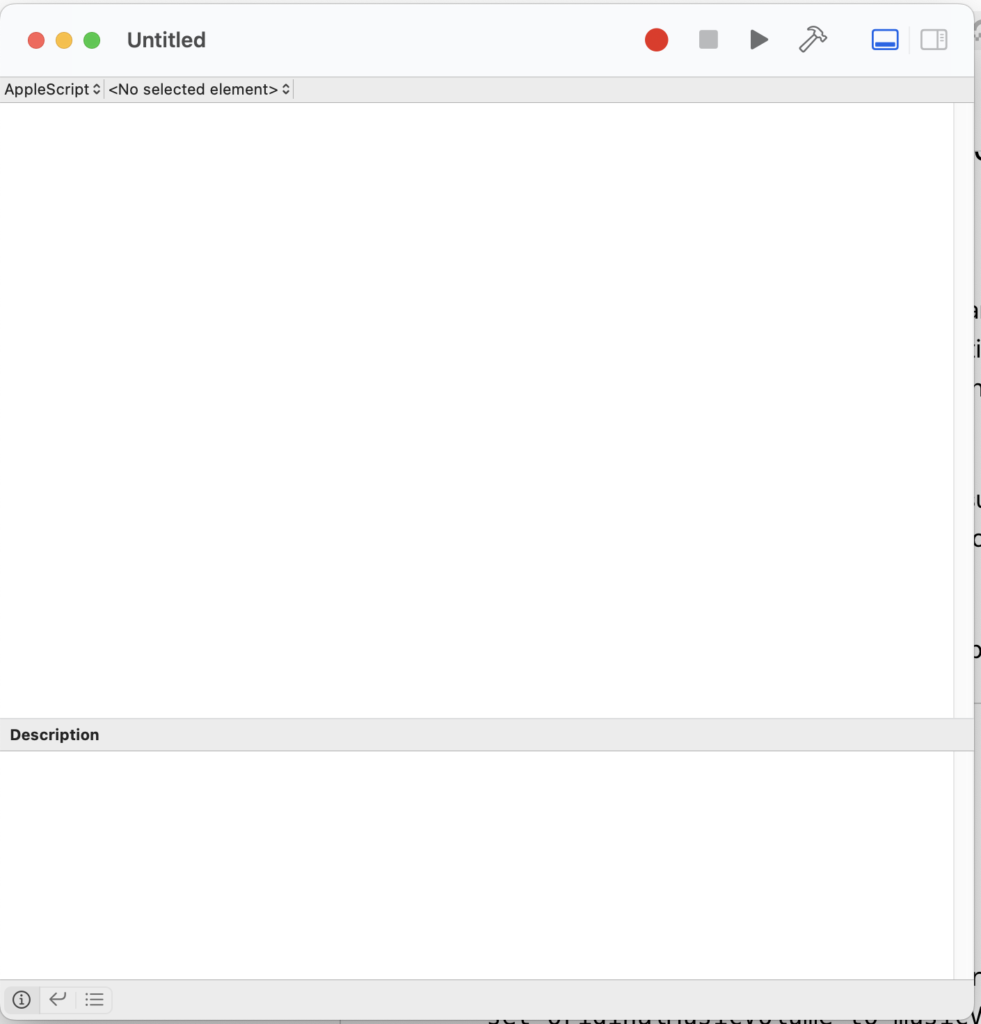
Click the “New Document” button to create a new script. You will be greeted with an empty scripting window:
Starting Music with AppleScript
First, let’s look at a script to start your music. A simple version would be:
Tell application "Music"
    play playlist "Pre-service music"
end tell
Copy and paste that code into the script editor, and hit the play button. Assuming your playlist is there, it should start up. There, you have created a simple AppleScript. Notice that the formatting changes in Script Editor, highlighting different keywords, etc.
Within AppleScript, the “tell” statements work with applications that are scriptable to tell them to do things. Unfortunately, ProPresenter, Lightkey, and some of the other popular programs do not have AppleScript support, but there are other options for those we will look at in future articles.
This basic script is usually fine, but what if the music was already playing? It would restart the playlist or maybe change from another one you are using. To prevent this, we will add a check to see if the music is already playing and let it continue if it is.
tell application "Music"
	-- get the current player state
	set isPlaying to player state as string

	if isPlaying is not "playing" then
                -- optional, delete to not shuffle
		set shuffle enabled to true
		play playlist "Pre-service music"
	end if
end tell
The line starting with — is a comment, it lets you document the code, but will be ignored at runtime. I will be adding comments to try to help clarify what is happening in the code. AppleScript is fairly easy to read, so I will not be explaining every line, only where I think it might need to be clarified.
How to fade Apple Music out Using AppleScript
There isn’t a built-in function to fade the music out, but we can set the volume, so our script will get the current volume, fade it, stop the music, and reset the volume back to the original level. Since scheduling is usually to the minute, not second, there is a 50-second delay so that it fades out just before the countdown video starts via ProPresenter’s calendar feature.
-- This sets the length of the fade out in seconds
set delaySecs to 3
-- Delay to fade out at the end of a minute
delay 50

-- Get current volume
tell application "Music"
	set musicVolume to sound volume
        -- Save original volume for later
	set originalMusicVolume to musicVolume
end tell

-- Loop through, reducing volume
repeat musicVolume - 1 times
	tell application "Music"
		set musicVolume to musicVolume - 1
		set sound volume to musicVolume
		delay delaySecs / originalMusicVolume
	end tell
end repeat

-- Stop music and reset the volume
tell application "Music"
	stop
	set sound volume to originalMusicVolume
end tell
Check out this post to see how to schedule AppleScripts to run at a specified time to automate your services.
What other things would you like to automate? Leave a comment and let me know what you think!
One response to “Controlling Apple Music Automatically”
[…] a previous post I showed you how to start and stop Apple Music with AppleScript, in this post I will show you how to use those scripts to schedule events like starting and […]