In a previous post I showed you how to start and stop Apple Music with AppleScript, in this post I will show you how to use those scripts to schedule events like starting and stopping recorded music ahead of a service. At my church we use this along with the Calendar feature in ProPresenter to automate all of our pre-service programming to ensure consistency.
This will assume you have created the start and stop scripts from the previous post. We will be using the launchd process on the Mac, and the “Launchd Task Scheduler” app, which makes the whole scheduling process a lot easier.
The first step is to prep your scripts, saving them somewhere you can run them from, and adding permissions to execute them. Once you have the scripts saved, open Terminal, and navigate to the directory where you saved them. If you are not comfortable navigating in the Terminal, type “cd ” (including the space after), open Finder, and navigate to the parent folder of the folder your scripts are in. Drag the scripts folder from Finder to the terminal window, and it will fill in the path, press return to get to the folder. Issue the “ls” command to verify you can see the scripts, and get the full name. Then issue the following command for both scripts:
chmod +x <script name>.scptThat adds the execute permission to the scripts so they can be run. Then we will do a test run with:
osascript <script name>.scptThe first time you run this, you will probably get a prompt to allow osascript to control Music, go ahead and say yes, or we won’t get any further. Here is the whole thing on my computer:
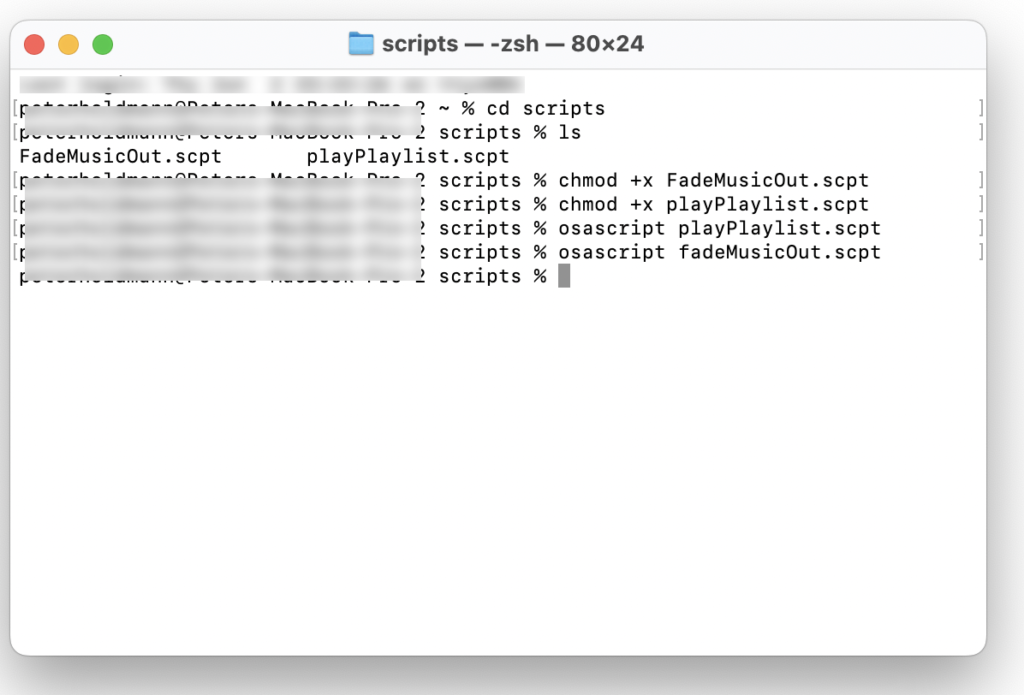
Once we are sure the music starts and stops correctly, we are ready to schedule it. LaunchD Task Scheduler is well worth the $5 (US, as of this writing), so we will be using that instead of trying to create the launchd files manually.
Start LaunchD Task Scheduler, and click the + to create a new job. Pick a name for the job, I usually use a service abbreviation and what the job does, i.e. Sun-AM-StartMusic. You will now see a form to the side, where you can name the job (why it doesn’t fill in the file name I have no idea).
Now click the button with the three dots to the right of the Program/Script text box to browse to your script. Once you choose it, you should see a message that it detected an AppleScript, and added the command line options. Verify that the path now starts with “/usr/bin/osascript”, and the “Program/Script has parameters/arguments” box is checked.
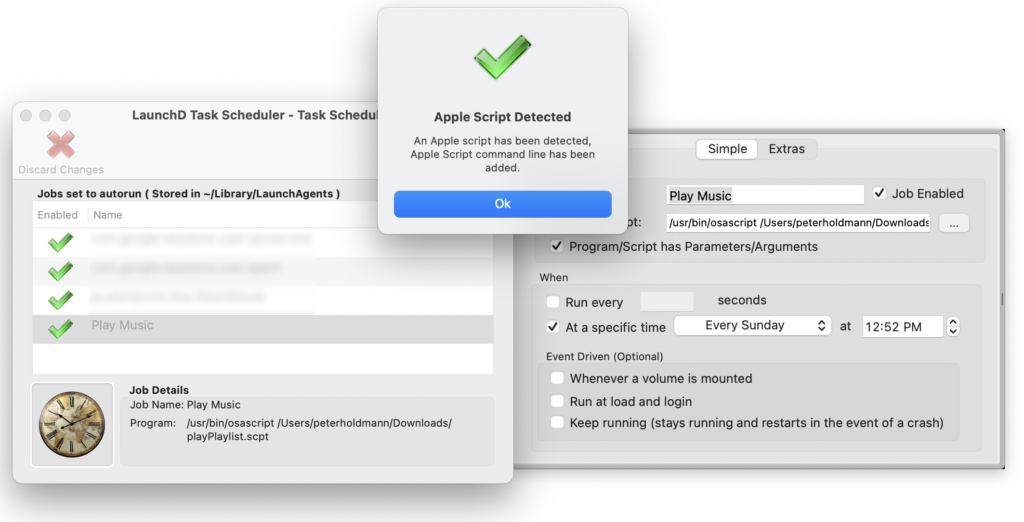
Uncheck the “Run Every” check box, and check the “At a specified time” checkbox. Select your schedule, i.e. Every Sunday at 9:00 AM (the one in my screenshot is only for testing). Leave the rest of the boxes unchecked, and click “Save Job”
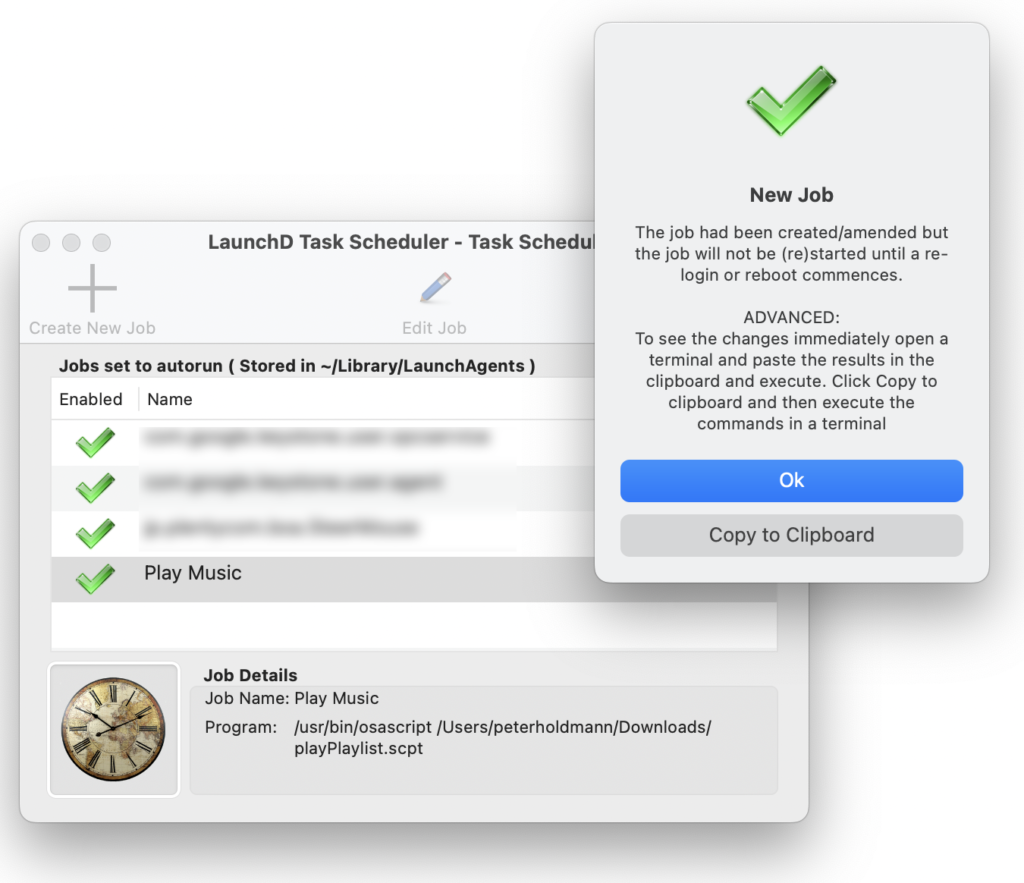
You will get a message that says that the job will not be started until you reboot. If you want to run it before a reboot, click the “Copy to clipboard” button, and paste that into the terminal and press Return. I have seen it throw an error the first time, so I usually run it again by pressing the up arrow on the keyboard, and hitting Return.
These jobs are scheduled per-user, so make sure it is logged in on the volunteer account. Scheduling no matter who is logged in is possible, let me know in the comments if that would be valuable and I can write it up.
Now the job should run at the time specified, although I have noticed that it is normally a few seconds late, time for the script to process and get Music running if it isn’t.
Now repeat the process with the fade out script, and for any other services you have.
Hope that helps, let me know in the comments if you run into any problems.
One response to “Scheduling Events on a Mac”
[…] out this post to see how to schedule AppleScripts to run at a specified time to automate your […]